How to check vodafone sim card number: The ultimate guide
Your Vodafone SIM card number (known as the ICCID) is a 19 or 20-digit number printed directly on the SIM card itself. You can also find it through your phone's settings or your Vodafone account online. Most people track it down in under two minutes using one of the methods below.
Where is the number printed on the SIM card?
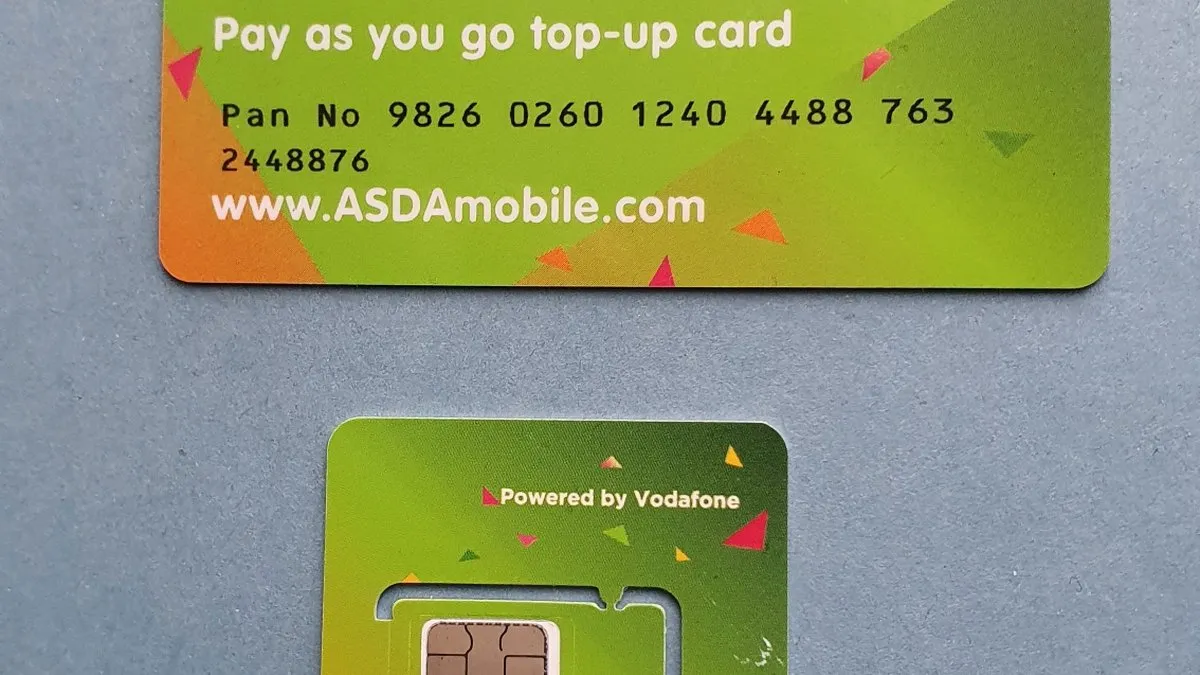
Look at the SIM card itself. The ICCID is printed on the plastic carrier it came in, or on the SIM chip directly. It starts with 89, which is the international telecom identifier prefix. If you still have the original packaging from Vodafone, the number is usually printed on the back of the card sleeve too.
If your SIM is already in your phone and you do not want to remove it, the phone's software can read it for you.
How do you find it in your phone's settings?
On an iPhone, go to Settings, then General, then About. Scroll down to find "ICCID". That is your SIM card number.
On Android, the path varies slightly by manufacturer. On most Samsung and Google Pixel devices in 2026, go to Settings, then About Phone, then Status, then SIM Card Status. The ICCID field shows your number. Some Android skins label it "SIM ID" rather than ICCID, but it is the same thing.
Can you dial a code to get the number?
Dialling *#100# on a Vodafone SIM will return your mobile number (the MSISDN), not the ICCID. These are two different things. Your mobile number is what people dial to reach you. The ICCID is the unique identifier of the physical or eSIM card. If someone has asked you for your "SIM card number", check whether they actually want your phone number instead, as that is a common mix-up.
How do you find it through your Vodafone account?
Log in at vodafone.co.uk and go to My Account. Select the relevant line, then look under Plan or Device details. Vodafone displays the ICCID there, which is useful if your SIM is in a device you cannot easily access right now.
The My Vodafone app (available on iOS and Android) shows the same information under Account, then SIM details.
What if none of those options work?
Call Vodafone customer service on 191 from your Vodafone phone, or 03333 040 191 from any other line. They can confirm your ICCID after a security check. This is the slowest option but reliable if your phone is faulty or you have lost the original SIM packaging.
When would you actually need this number?
The ICCID comes up most often when activating a replacement SIM, setting up an eSIM transfer, or troubleshooting a network issue with Vodafone support. Some parental control apps and fleet management services also ask for it during device registration. For day-to-day use, you will rarely need it.
Frequently asked questions
- where is my Vodafone SIM card number
- Your Vodafone SIM card number (ICCID) is a 19 or 20-digit number printed directly on the SIM card itself, starting with 89. You'll find it on the plastic carrier the SIM came in, on the SIM chip directly, or on the back of the original Vodafone card sleeve if you still have the packaging.
- how to find SIM card number on iPhone
- On iPhone, go to Settings, then General, then About and scroll down to find the ICCID field. This is your SIM card number and you can view it without removing the SIM from your phone.
- how to check SIM card number Android phone
- On Android devices like Samsung or Google Pixel, go to Settings, then About Phone, then Status, then SIM Card Status to find your ICCID. Some Android phones may label it as 'SIM ID' instead, but it's the same number.
- what does *#100# do on Vodafone
- Dialling *#100# on a Vodafone SIM returns your mobile number (MSISDN), not your SIM card number (ICCID). These are two different things-your mobile number is what people dial to reach you, while your ICCID is the unique identifier for the SIM card itself.
- can I find my Vodafone SIM number online
- Yes, you can find your SIM card number through your Vodafone account online by logging in to your account portal. This is useful if you don't have the physical SIM card available or prefer to check digitally.
Was this article useful?
Thanks — your feedback was recorded.
Comments
0 comments
Loading comments…