how to telco
How to Reboot Your Vodafone Router in 5 Easy Steps
5 seconds
Duration to press reset button that triggers a simple restart (not factory reset) on Vodafone Station
Source: Vodafone Community Blog
<p>Rebooting your Vodafone router takes about a minute and fixes most common issues: slow speeds, dropped connections, and the dreaded "no internet" light. The simplest method is a power cycle. If that does not work, the Vodafone Station also lets you restart via the router's user interface or its physical reset button.</p>

<h2>What is the difference between a restart, a reboot, and a factory reset?</h2>

<p>Vodafone treats these as three separate actions, and mixing them up can cause real problems. A restart and a reboot are effectively the same thing: the router powers off and back on, your settings stay intact, and your Wi-Fi password does not change. A factory reset is different. It wipes the device back to its original out-of-box state, which means you lose any custom settings, port forwarding rules, and potentially your Wi-Fi credentials.</p>

<p>Vodafone recommends trying a restart or reboot first. Only move to a factory reset if the problem persists after that.</p>

<h2>How to reboot your Vodafone router by turning it off and on</h2>

<p>This is the method to try first. It requires no buttons and no menus.</p>

<ol>
  <li>Unplug the power cable from the back of the Vodafone Station.</li>
  <li>Wait 30 seconds. This gives the hardware time to fully discharge.</li>
  <li>Plug the power cable back in.</li>
  <li>Wait for the router to come back online. The lights will cycle before settling. Allow up to two minutes before testing your connection.</li>
</ol>

<h2>How to restart via the Vodafone Station user interface</h2>

<p>If you prefer a software restart, log in to the Vodafone Station's admin interface through your browser. From there, the settings menu includes a restart option that performs a clean reboot without touching any of your saved configuration. This is a tidy option if the router is in an awkward spot and unplugging it is inconvenient.</p>

<h2>How to use the physical reset button without triggering a factory reset</h2>

<p>The reset button on the Vodafone Station is where people most often go wrong. Press it for only 5 seconds and the router performs a simple restart, leaving all your settings in place. As Vodafone's Community Blog states: "Pressing the reset button for only 5 seconds will simply restart your router without resetting it to factory settings."</p>

<p>Hold the button for longer than that and you risk triggering a full factory reset. If your goal is just a reboot, keep the press short and watch for the lights to indicate the restart has begun.</p>

<h2>When does a factory reset make sense?</h2>

<p>A factory reset is a last resort: use it only if repeated restarts have not resolved the problem and Vodafone support has suggested it. After a factory reset, the Vodafone Station returns to its original settings. You will need to reconfigure your Wi-Fi name, password, and any custom settings from scratch. The reset can be done either through the user interface or by holding the physical button for longer than the 5-second restart threshold.</p>

<h2>Still having problems after a reboot?</h2>

<p>If a power cycle and a button restart have not helped, check whether there is a known outage in your area via the Vodafone service status page before going further. If there is no outage and the issue continues, contact Vodafone support directly. A factory reset should only happen on their advice, since it creates more work to get back to a working setup.</p>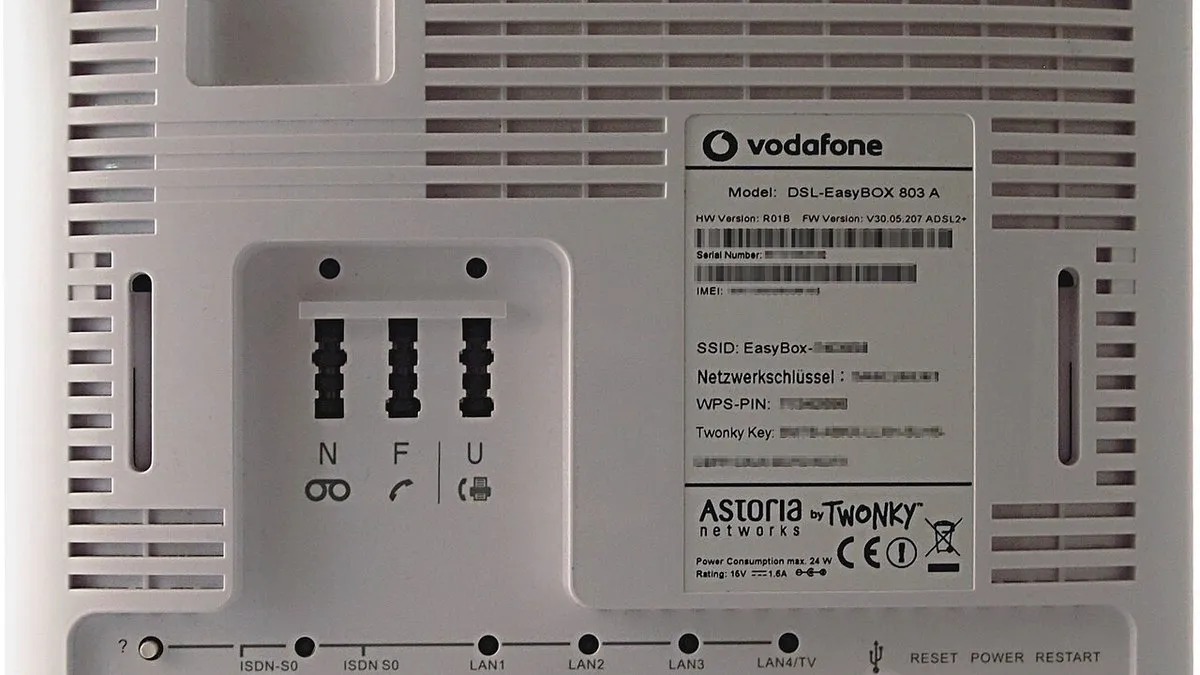
Pressing the reset button for only 5 seconds will simply restart your router without resetting it to factory settings.
Frequently asked questions
- how long do I press the reset button on Vodafone Station to restart
- Press the reset button for only 5 seconds to restart your Vodafone Station without losing your settings. This performs a simple reboot rather than a factory reset, so your Wi-Fi password and custom configurations remain intact.
- what's the difference between restart and factory reset Vodafone router
- A restart or reboot powers your router off and back on while keeping all your settings, Wi-Fi password, and port forwarding rules intact. A factory reset wipes the device back to its original state and erases all custom settings and credentials. Vodafone recommends trying a restart first before attempting a factory reset.
- how to reboot Vodafone router without losing WiFi password
- Use the power cycle method: unplug the power cable, wait 30 seconds, then plug it back in. This restarts your router while preserving all settings including your Wi-Fi password. Avoid pressing the reset button for longer than 5 seconds, as extended pressing triggers a factory reset that will erase your password.
- how long to wait after unplugging Vodafone Station before plugging back in
- Wait 30 seconds after unplugging the power cable from your Vodafone Station. This allows the hardware to fully discharge before you plug it back in, ensuring a proper reboot.
- does rebooting Vodafone router fix slow internet speed
- Yes, rebooting your Vodafone router fixes most common issues including slow speeds, dropped connections, and no internet light problems. A simple power cycle typically resolves these issues within about a minute.
Was this article useful?
Thanks — your feedback was recorded.
Sources
- Restart, Reboot, and Reset: Solutions for Network Problems (forum.vodafone.de)
- HOW TO Reboot Your Wi-Fi Router - YouTube (www.youtube.com)
Comments
0 comments
Loading comments…