Editorial note: This guide covers Virgin Media TV 360 equipment. While rechargevodafone.co.uk primarily focuses on Vodafone services, we’re providing this information because many UK households use multiple providers. For Vodafone-specific TV services, please see our dedicated Vodafone TV section.
The Virgin TV 360 platform brings voice control, individual user profiles and 4K-ready viewing to your living room. Your equipment arrives with a basic setup leaflet, but this guide goes further. It draws on official Virgin Media resources to walk you through installation, key features and common fixes.
Setting up your main 360 box
You’ll need to connect the box to three things: your wall socket, your television and your internet. Virgin Media strongly recommends using an Ethernet cable to your Hub rather than relying on WiFi. The difference in stability is noticeable.
Start with the coaxial cable from your wall socket. Attach it to the back of the 360 box (you may need the small cable adaptor that comes in the packaging). Next, take the Ethernet cable and plug one end into any yellow port on your Hub. The other end goes into the back of the 360 box.
For the HDMI connection, use the new cable provided in the box. If you own a 4K television, check which HDMI sockets support 4K (your TV manual will list this, or look for labels like “HDMI 2.0” or “4K” near the ports). Connect the HDMI cable between the 360 box and that specific port.
Plug the power supply into the back of the box, then into a mains socket. Switch the box on using the power button on the rear panel. Turn on your TV and use its own remote to select the correct HDMI input. Most TVs label these as HDMI 1, HDMI 2, and so on.
When the Welcome screen appears, pull the plastic tab from your 360 remote to activate the batteries. Follow the on-screen prompts. The box will download its latest software, a process that takes up to 10 minutes and includes one automatic restart.
Adding a 360 Mini box for a second room
The Mini box extends Virgin TV to another room. It can use WiFi, but an Ethernet cable remains the better choice for reliability.
Physical setup mirrors the main box: coaxial cable, HDMI cable, power cable. During the on-screen setup, you’ll reach a network connection step. Press the WPS button on your Hub for automatic pairing, or manually select your WiFi network and type in the password.
Remote control pairing and voice commands
Your remote pairs automatically during initial setup. If pairing fails, or if you later add a soundbar, you can manage connections manually.
To pair the remote with an amplifier or soundbar, go to Settings, then Audio & Video. Select ‘Pair remote to audio system’ and follow the instructions. If the remote stops controlling your box entirely, point it at the box and hold the TV and 0 buttons together for 10 seconds. For a full factory reset of the remote itself, hold TV and Rewind for 10 seconds.
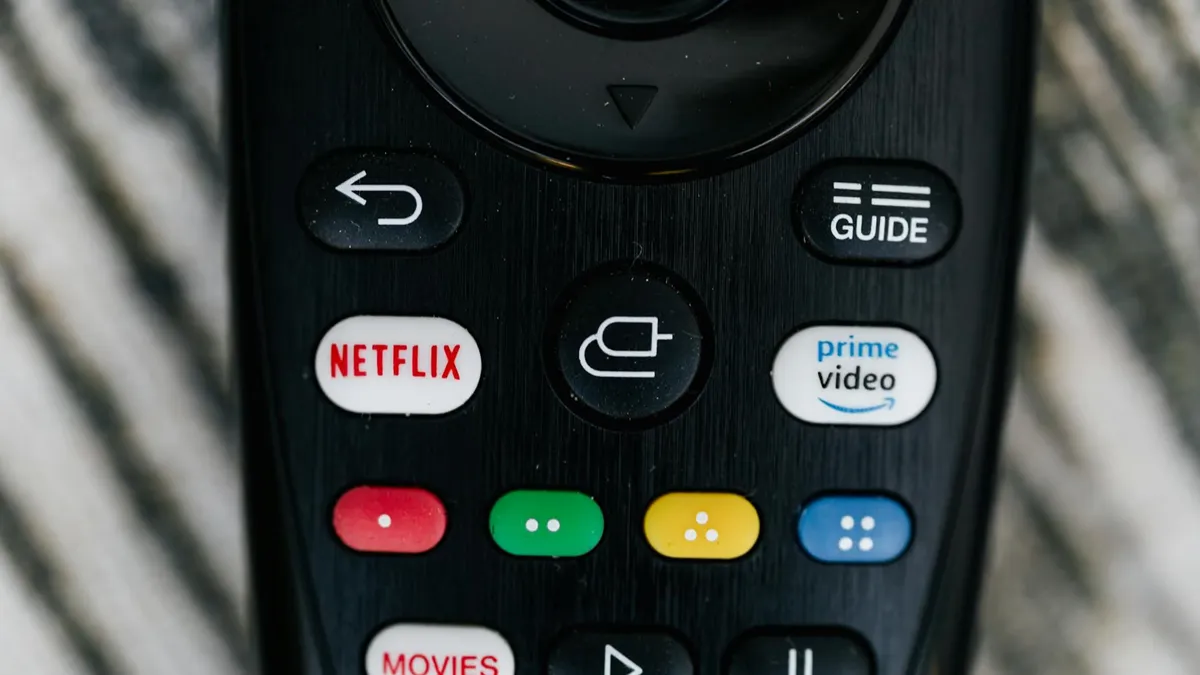
Voice control works by holding the microphone button and speaking. Commands include “Netflix” to launch the app, “Recordings” to view saved shows, “Subtitles on” to enable captions, and “Go back to top” to jump to the start of a menu.
Fixing common problems
Remote stops working
Replace the batteries first. If that achieves nothing, re-pair by holding TV and 0 for 10 seconds. Still unresponsive? Reboot the entire 360 box by switching it off at the back, waiting 60 seconds, then switching it on again.
No picture or sound
Check the HDMI cable is firmly seated at both ends. Confirm your TV is set to the correct HDMI source (press the Source or Input button on your TV remote). If the problem continues, try a different HDMI port on your TV or swap in a different HDMI cable.
Apps fail to load
A full power cycle usually clears this. Switch the box off at the wall socket, wait at least 60 seconds, then turn it back on. Also restart your broadband Hub to rule out connection issues.
Overheating warnings or hard drive errors
Ensure the box has proper ventilation. Don’t place it inside a closed cabinet or stack other equipment on top. If hard drive error messages persist after ensuring good airflow, the box may be faulty. Contact Virgin Media for a replacement.
Making the most of 360 features
You can create up to six personal profiles. Each person gets their own recommendations, watchlist and favourite channels. Press the Profiles button on the side of the remote and select the option to add a new profile.
The Virgin TV Go app (available for iOS and Android) lets you watch live and on-demand TV on mobiles and tablets. You can register up to five devices and stream to two at once. Selected shows can be downloaded for offline viewing. The app also functions as a backup remote control.
The separate Virgin Media Connect app manages your broadband service. Use it to test WiFi performance in each room, manage WiFi Pods, reboot your Hub remotely, or pause WiFi to specific devices. This app does not control TV functions; it’s purely for network management.
When to contact Virgin Media support
If you’ve tried the troubleshooting steps above and problems persist, Virgin Media’s support team can run remote diagnostics on your equipment. Persistent pixelation, frequent disconnections or hardware faults typically require an engineer visit or equipment replacement. You can reach support through the My Virgin Media app, by phone on 150 from a Virgin landline (or 0345 454 1111 from any phone), or via the live chat function on their website.
Comments
0 comments
Loading comments…